Many developers already reach two tool servers straight from their editor: Context7
for current library documentation and O’Reilly for books, videos and courses. Each
needs a personal key, so each person’s .mcp.json carries one:
"oreilly": {
  "type": "http",
  "url": "https://api.oreilly.com/api/content-discovery/v1/mcp/",
  "headers": {
    "Authorization": "Bearer ${OREILLY_MCP_TOKEN}"
  }
},
"context7": {
  "type": "http",
  "url": "https://mcp.context7.com/mcp",
  "headers": {
    "CONTEXT7_API_KEY": "${CONTEXT7_API_KEY}"
  }
}
That works for one person on one machine. It does nothing for the chat workspace, for agents or for a colleague, and the key sits in an environment variable or a file. This article moves both servers behind the platform. An administrator connects each one once. Each person keeps their own key in their own OpenBao folder, sets or changes it from the console or from OpenBao, and the key goes out only on their own calls. It is never in a chat, a config file or a shared account.
Everything below was done on a live system on 27 September 2026. The screenshots are real, with names and addresses replaced.
Who does what
| Step | Who | Where |
|---|---|---|
| Register the server | Administrator | Console, /mcp → Register a server |
| Declare the variable, on that server | Administrator | Console, /mcp → Variables |
| Save their own key, then Sync tools | Administrator | My variables (/vault), then /mcp |
| Save, check and change their own key | Each person | My variables, OpenBao web UI or bao CLI |
People cannot register servers or declare variables themselves: each of those decides where the platform sends traffic and credentials. What they control is their own key.
Where your key lives
Every person’s values sit in one folder of the kv secrets engine (KV version 2):
kv/
└── users/
    └── ayse.demir@corp.example/
        └── mcp/
            ├── context7    CONTEXT7_API_KEY
            └── oreilly     OREILLY_MCP_TOKEN
Read the path kv/users/<email>/mcp/<server> part by part:
| Part | What it is | What to get right |
|---|---|---|
kv |
The secrets engine | Always kv |
users/<email> |
Your personal vault | Your address exactly as your sign-in spells it, including case. bao token lookup shows it as meta.email |
mcp |
The only folder the platform reads | Anything you keep elsewhere in your vault is yours alone and never sent anywhere |
<server> |
One secret per tool server | The server’s slug, shown in brackets on /mcp, for example oreilly (oreilly) |
| the key inside | One key per declared variable | The variable’s name, exactly and in capitals: CONTEXT7_API_KEY, OREILLY_MCP_TOKEN |
Two more things about the path:
- Nobody can list
kv/users/. No one can see which colleagues have a vault, so you open your own folder by its full path. The console links to it for you. - The command line and the web UI use
kv/users/…; the underlying API and policies usekv/data/users/…for values andkv/metadata/users/…for versions. If a tool asks for the API path, that is the one.
Part A: the administrator
A1. Start from what your .mcp.json already says
Each entry of the .mcp.json above answers a question on the console’s forms:
In .mcp.json |
On the console |
|---|---|
The entry’s name, oreilly |
Name. It becomes the server’s slug, which is also the OpenBao secret name. Keep it identical |
url |
URL (streamable HTTP endpoint) |
| The header’s name | The variable’s Header |
The header’s value around ${…} |
The variable’s Template, with ${value} where the key goes |
The ${…} name |
The Variable name people see |
The slug is fixed when the server is registered. If the name is already taken, the
platform adds -2, and the OpenBao folder follows the slug, so check the brackets on
/mcp before you tell people where their key lives.
A2. Register each server
On /mcp → Register a server, enter the name and URL, leave Auth at none (there
is no shared key: every person brings their own), and tick require user (signed
assertion). Then press Register & sync.
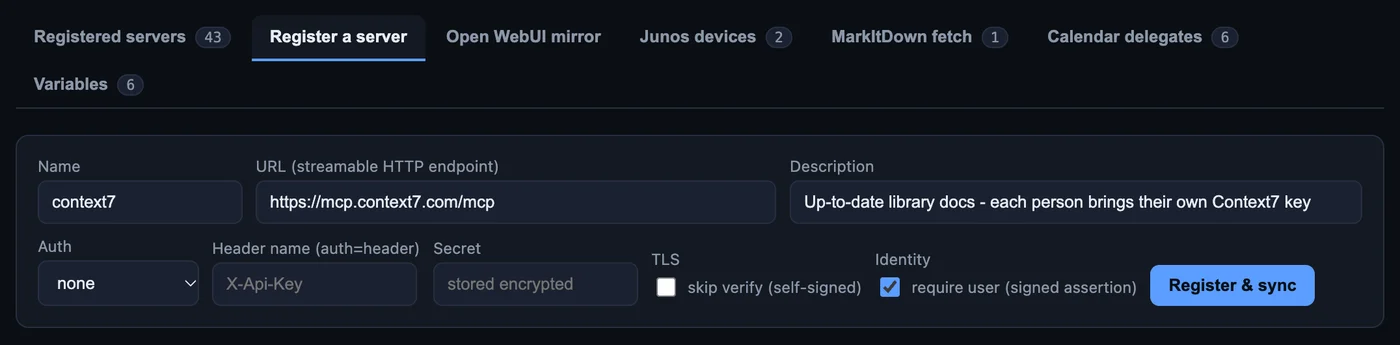
Context7 answers without a key, so its tools appear at once. O’Reilly refuses anyone without a token, so its first sync fails, and the row says exactly what to do next:

That is expected. The next two steps fix it.
A3. Declare the variable, and choose the server first
On /mcp → Variables → Declare a variable, the first field is Server. It
decides everything else about this variable:
- It is where the value goes. A person’s value for this variable is sent to this server and to no other.
- It is where the value lives. The value is stored in
mcp/<this server's slug>in each person’s OpenBao folder. - It cannot be changed later. Editing a declaration lets you change delivery, header, template, format, required, secret and description, but not the server and not the name. A variable on the wrong server has to be deleted and declared again, and deleting it deletes every value people have stored for it.
- Two servers never share a variable. If two servers take the same token, declare it on each, and each person saves it once for each.
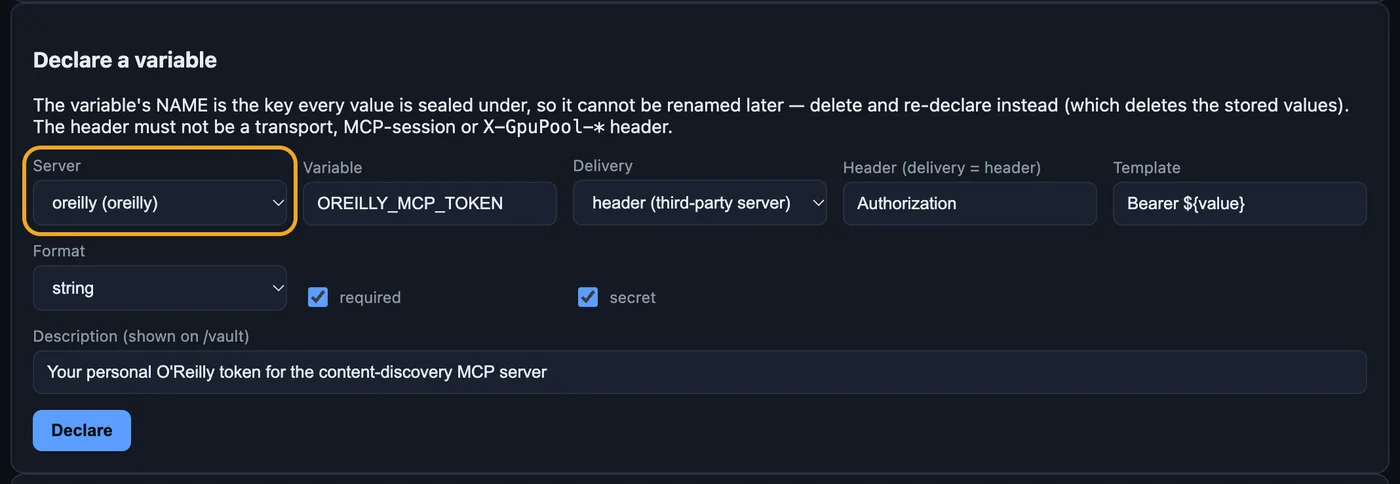
The rest of the form comes straight from the header line in .mcp.json:
| Server | Variable | Delivery | Header | Template | Required | Secret |
|---|---|---|---|---|---|---|
context7 |
CONTEXT7_API_KEY |
header | CONTEXT7_API_KEY |
(blank: the raw value) | yes | yes |
oreilly |
OREILLY_MCP_TOKEN |
header | Authorization |
Bearer ${value} |
yes | yes |
Write a description for each; people read it on their own page. After Declare, both servers show their variable and where it is delivered:
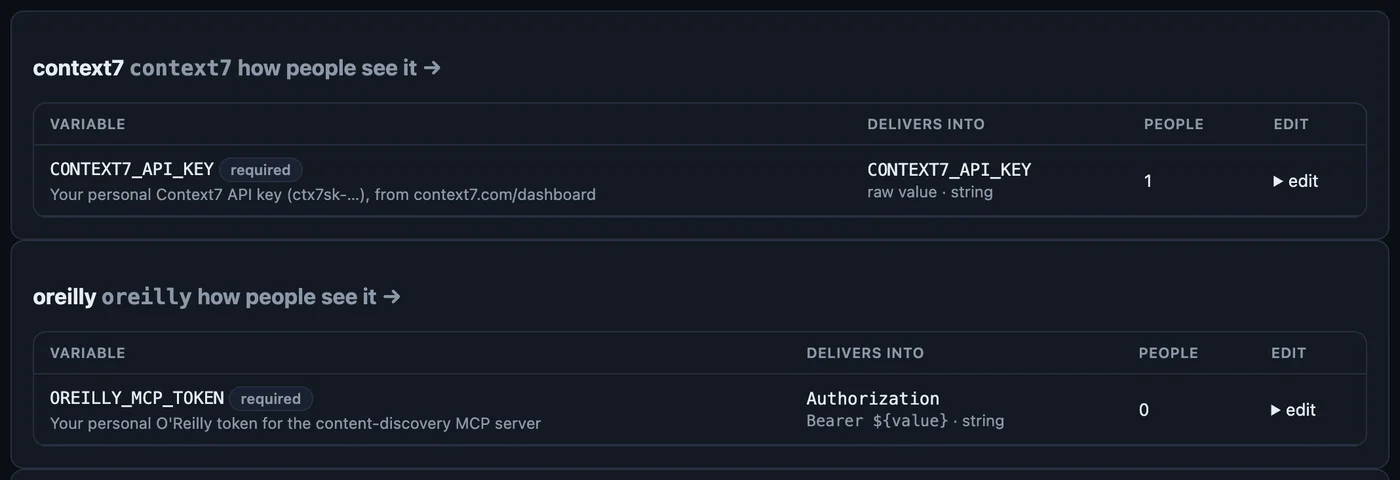
What the platform enforces for you: people supply values only, never a header or a template; transport headers and the platform’s own headers cannot be targeted; and a required variable that a person has not set stops their call with a link to their page, before anything reaches the tool server.
A4. Save your own key, then Sync tools
A server with no shared key refuses even to list its tools anonymously. Sync tools therefore runs with the pressing administrator’s own value. Save your own O’Reilly token on My variables first (step B1 below), then press Sync tools on the row:

The cached tool list is what your token can see. Every person’s calls still carry their own token.
By default a server is open to all signed-in users of the allowed teams. For a server only some people should reach, set its Access to granted and add them. The GitHub article walks through the same steps for a third service.
Part B: each person
B1. Save your key on My variables
Sign in to the console and open My variables (/vault). A server whose required key
you have not saved says so:

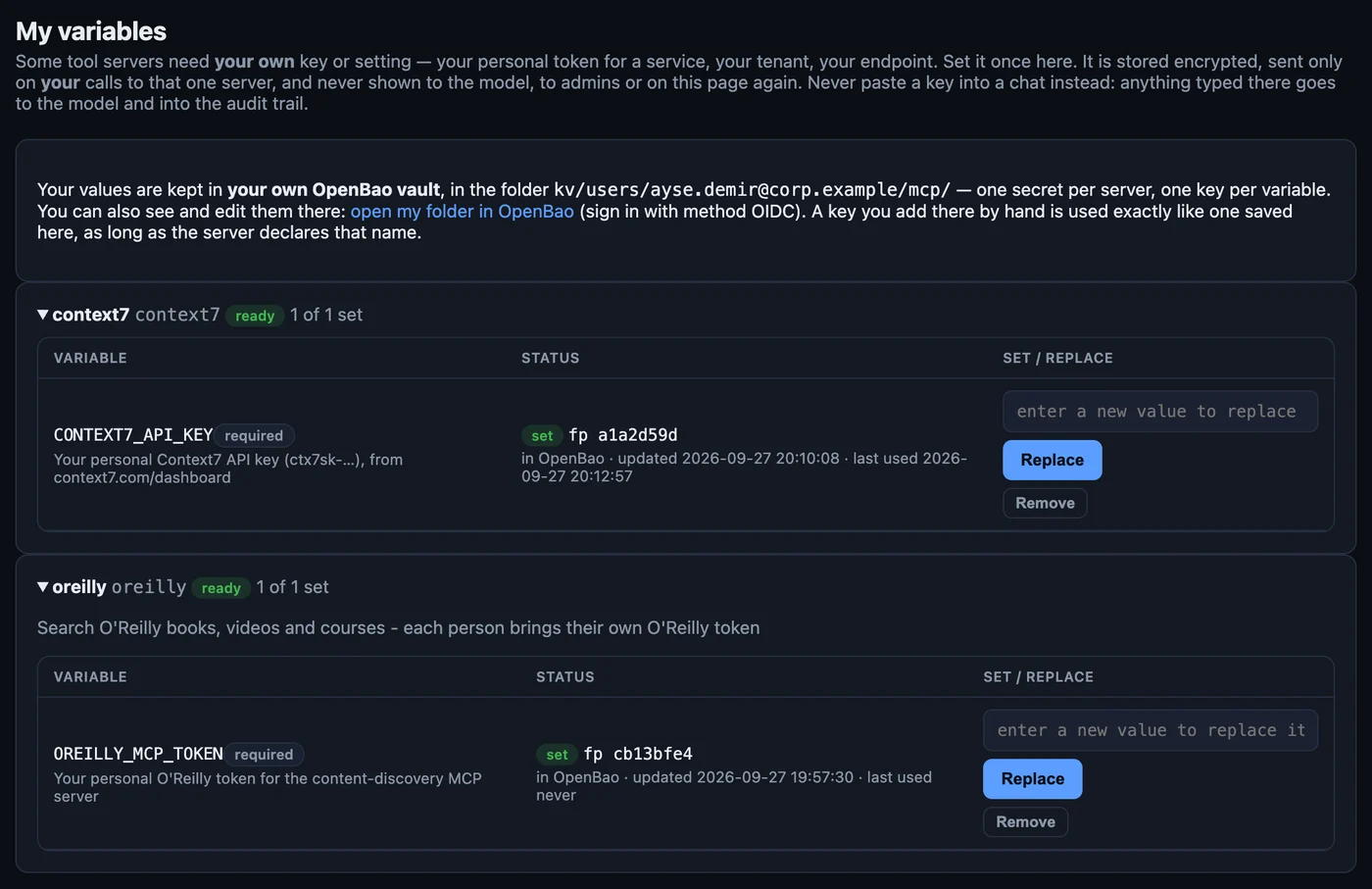
Paste your key and press Save. The row then shows set, a short fingerprint and in OpenBao. The value is never shown again, not even to you. To change it later, type the new key and press Replace; the fingerprint changes.
The box at the top of the page names your folder and links to it:
B2. Check it in OpenBao
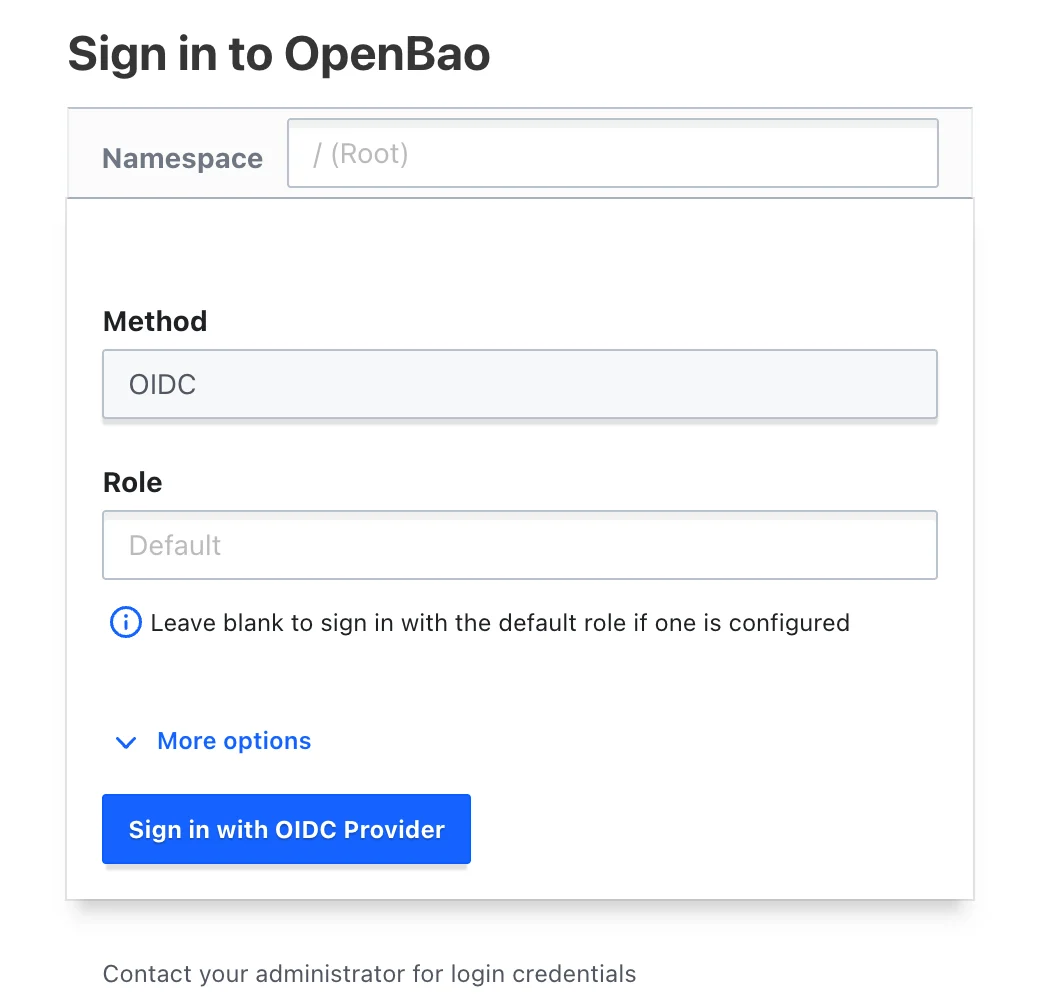
Follow open my folder in OpenBao. Choose method OIDC, leave Role blank, and sign in with the same company account you use for the console. An administrator should also leave the role blank for this: the administrator role is for running the vault, not for personal keys.
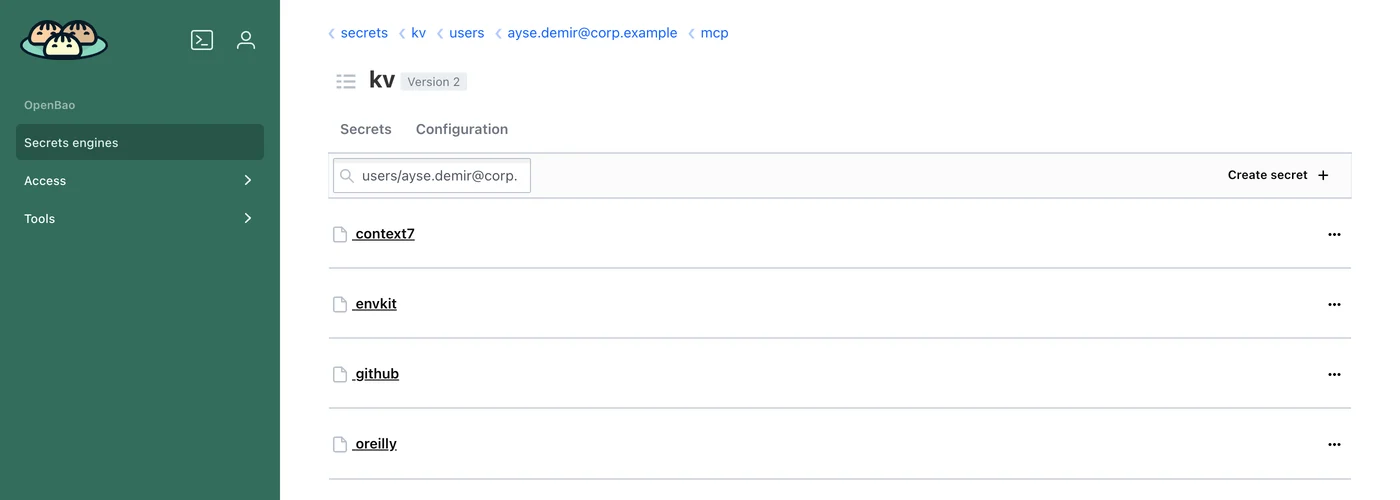
The link opens mcp/ in your folder. There is one secret per server:
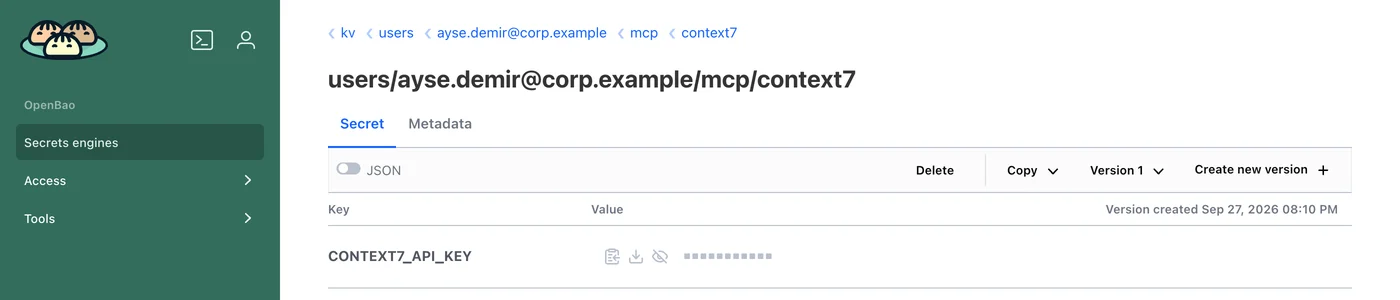
Open one. It holds one key, named exactly like the variable, with its value masked until you reveal it:
B3. Change it in OpenBao
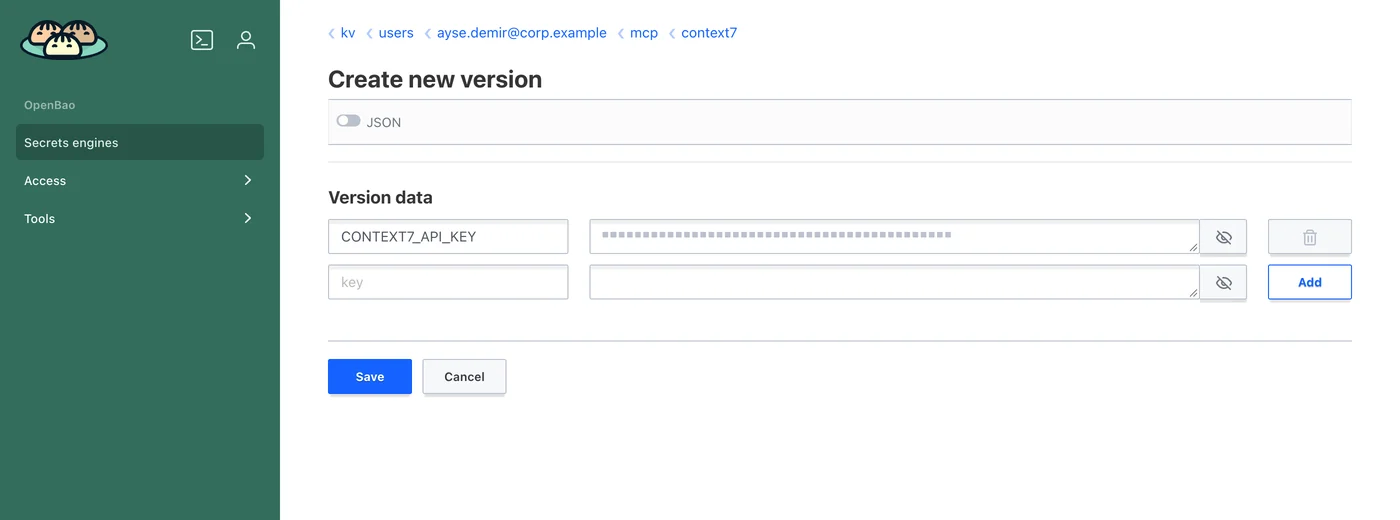
On the secret, press Create new version, replace the value, and Save. Keep the key name exactly as it is, and do not delete the other rows if the secret has several keys: the new version is the whole secret.
There is nothing to save on the console. The platform reads your folder on every call, so the next call uses the new key, and My variables shows the new fingerprint and time:
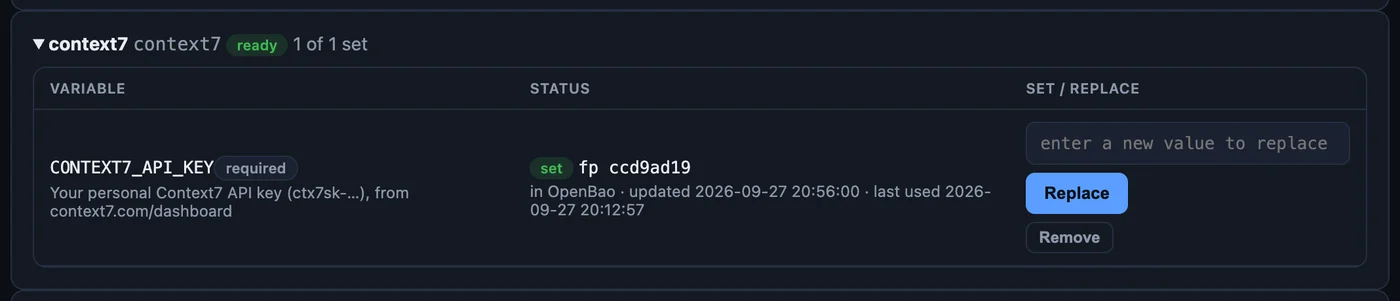
A key typed into OpenBao is checked exactly like one saved on the console: no line breaks, at most 8 KiB, and the variable’s format. A value that fails is refused as unusable rather than sent. A key you add under a name the server does not declare is kept and never sent.
B4. The same from the command line
Point the bao client at your vault and sign in; a browser window completes the
company sign-in:
export BAO_ADDR=https://vault.corp.example
bao login -method=oidc
bao token lookup
bao token lookup shows your folder name as meta.email. List your folder, read a
secret and see its versions:
bao kv list kv/users/ayse.demir@corp.example/mcp
bao kv get kv/users/ayse.demir@corp.example/mcp/context7
bao kv metadata get kv/users/ayse.demir@corp.example/mcp/context7
To change one key, use patch, and pass the value on standard input so it never
lands in your shell history (read -rs does not echo what you paste):
read -rs NEWKEY
printf '%s' "$NEWKEY" | bao kv patch kv/users/ayse.demir@corp.example/mcp/context7 CONTEXT7_API_KEY=-
unset NEWKEY
Do not use bao kv put to change one key. put writes a whole new secret: every key
you do not name is dropped. patch changes only the keys you name. This matters for a
server with several variables.
What each command answered for a member, run against the live vault:
| Command | Result |
|---|---|
bao token lookup |
meta.email = your address; policies default and personal |
bao kv list …/mcp |
context7, envkit, github, oreilly |
bao kv list kv/users/ |
403: nobody may list who has a vault |
bao kv get …/mcp/context7 |
CONTEXT7_API_KEY and its value, version 2 |
bao kv metadata get …/mcp/context7 |
versions 1 and 2 with their times |
put with one key on a two-key secret |
the other key was gone |
patch with one key on a two-key secret |
the other key was kept |
Use it from your editor
Once both servers are on the platform, your .mcp.json no longer carries anybody’s
key. It points at the platform’s relay and sends your personal platform key; the relay
adds your Context7 or O’Reilly key from your folder on the way out:
"context7": {
  "type": "http",
  "url": "https://ai.corp.example/api/mcp/context7",
  "headers": {
    "Authorization": "Bearer ${BOSPHORUS_KEY}"
  }
},
"oreilly": {
  "type": "http",
  "url": "https://ai.corp.example/api/mcp/oreilly",
  "headers": {
    "Authorization": "Bearer ${BOSPHORUS_KEY}"
  }
}
Replace ai.corp.example with your platform’s address. The last part of each URL is
the server’s slug. The chat workspace, the editor extension and agents reach the same
servers the same way, each with the key of whoever is asking. In
aimo for VS Code there is nothing to add to a file: once
you are signed in it reaches the same servers through the relay, and its Vault view
writes your variables into the same folder.
What the platform promises about your key
- It is read from your folder on each of your calls, and sent only to the one server it was declared on. There is no cache: a change applies to the next call.
- It is never in the model’s context, never in a log line, and never in the audit trail,
which records the variable’s name only. If a tool’s answer echoes it, the stored
copy shows
[uservar:CONTEXT7_API_KEY]instead. - The console never shows it, to you or to its administrators, and no ordinary sign-in can list other people’s vaults. The few people who run OpenBao itself hold a role that can reach every folder; keep that group small.
- If OpenBao cannot be read for a moment, a required key stops the call with could not be read from the vault just now … try again. It never says the key is missing, and it never sends the call without it.
- Remove on My variables deletes it. Removing the last key of a server destroys that secret with its history. Removing one of several keys leaves the old value in the secret’s version history, which you can destroy in OpenBao.
When something is not right
| Situation | What to do |
|---|---|
| This tool needs your own OREILLY_MCP_TOKEN … | Save your key on My variables; the message links there. |
Sync tools shows mcp http 401 |
The administrator pressing it has not saved their own key yet (A4). |
OpenBao says permission denied on users/ |
Expected: nobody may list other vaults. Open your folder by its full path, or use the console’s link. |
| A key you typed in OpenBao is not used | Check the secret name is the server’s slug, the key name is the variable’s name in capitals, and the email in the path matches bao token lookup exactly. |
| My variables shows the value as not usable | The value breaks a rule (line break, over 8 KiB, wrong format). Create a new version with a clean value. |
You used put and lost other keys |
Open the previous version in OpenBao, copy the missing values, and create a new version with all keys. |
| could not be read from the vault just now | OpenBao is briefly unreachable. Try again in a minute; if it persists, tell your administrator. |
| You are leaving | Remove your values on My variables, or ask an administrator to delete them. |