Your administrator has switched on eight tool servers for everyone in the chat workspace, aimo. Until now every tool started switched off, and you had to find and switch on each one in every new chat. Now a new chat starts with these eight already on, so you can simply ask: “what is on my calendar tomorrow?”, “convert this web page to Markdown”, “which courses cover OSPF?”.
The list is the same for everybody and is chosen by the administrator. It is a starting point, not a rule: in any chat you can switch a default tool off, or switch on any other tool you have access to, whenever you like. A later update will let each person choose their own defaults; until then, the administrator’s list is what every new chat starts with.
This guide explains all eight: what each one does, how to use it, and prompts you can copy. It ends with one request that uses the calendar, Outlook and Teams together. Everything was checked on the running product on 27 September 2026, by an ordinary (non-administrator) user. The screenshots are real, with names and addresses replaced, and the first prompt listed under each tool was run on the live system and worked.
Who does what
| What | Who | Where |
|---|---|---|
| Choose which tools start switched on for everyone | Administrator | Console, /mcp → Open WebUI mirror → Default-on in aimo |
| Switch a tool off or on in a chat | Each person | aimo, the chat’s Integrations menu → Tools |
| Sign in to Microsoft for calendar and mail, once | Each person | In the chat, when a tool asks you to |
| Choose your own defaults | Each person | Coming in a later update |
What you see in a new chat
Open a new chat. Under the message box, next to the model name, the wrench shows a number: 8. Those are the tools that are already on. Open the Integrations menu (the icon left of the wrench) and choose Tools to see every tool you may use, each with its own switch:
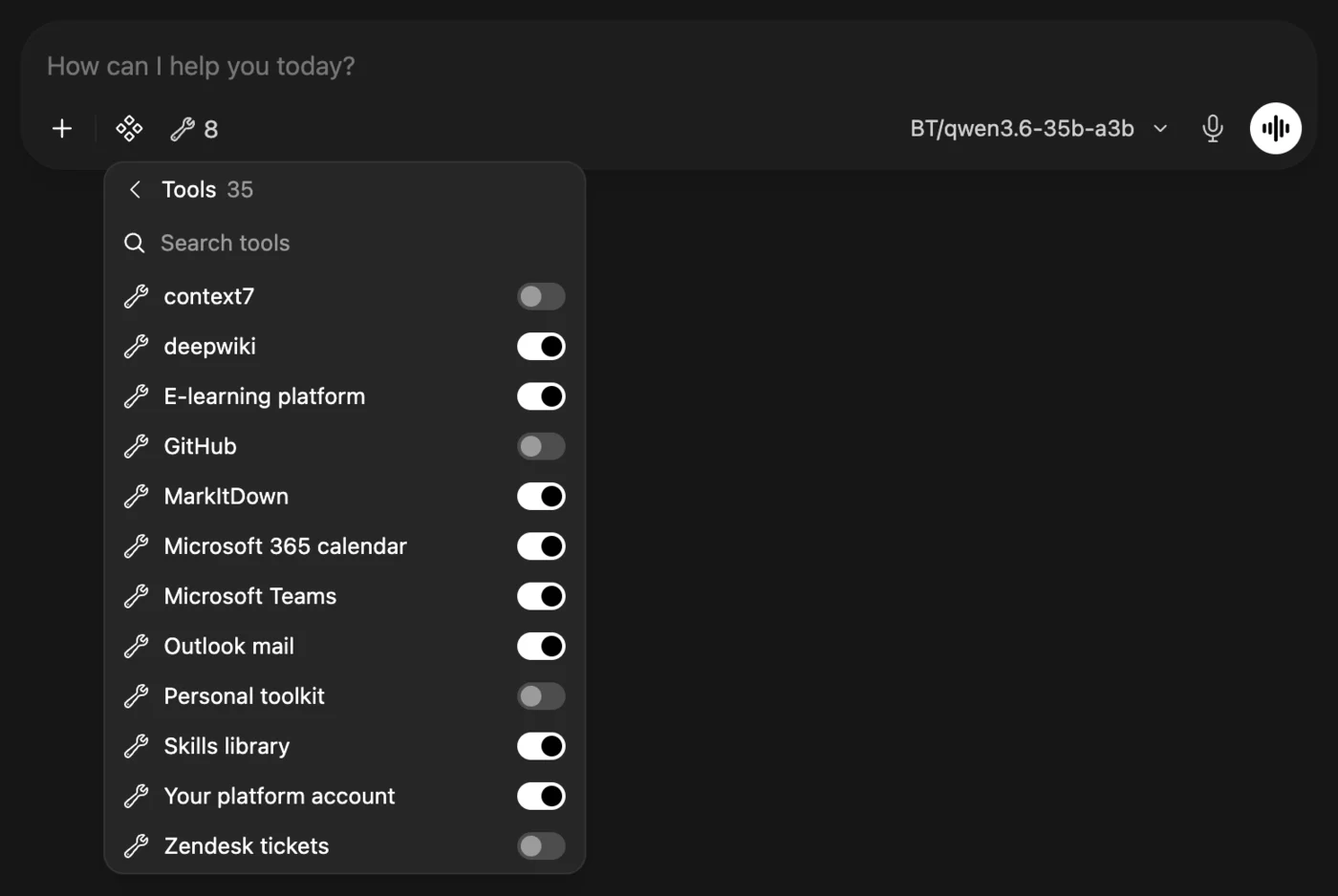
The picture shows the eight defaults switched on and four other tools switched off; the menu on your screen lists more, because it shows every tool your account may use. In the Turkish interface the menu is called Entegrasyonlar and the item Araçlar.
Switching tools off and on
- To switch a tool off, open Integrations → Tools and flip its switch. The number on the wrench goes down. It stays off for the rest of that chat; your next new chat starts with the defaults again.
- To switch another tool on, flip its switch in the same list. Search tools at the top finds one by name.
- Why you might switch some off. Every tool that is on sends a description of itself to the model with each message. That uses part of the model’s context and of your token budget, even when the tool is not used. If a small model struggles or a long chat gets slow, switch off what you do not need for that conversation.
- Two cases where the eight are not pre-selected. If you pick several models at once for one chat, no tool starts switched on. And a model that the administrator has given its own tool list starts with that list instead of these eight.
- Web Search and Code Interpreter, in the same Integrations menu, are separate switches. They are not among the eight and work as before.
Before you start: two sign-ins and one Teams message
Three of the tools act as you in Microsoft 365, so they need you to be recognised there first.
- Calendar and mail each need one Microsoft sign-in. They are separate: signing in for the calendar does not sign you in for mail. The first time a calendar or mail tool needs you, or when you ask “sign me in to my Microsoft calendar” (or “…to my mail”), the chat shows a web address and a short code. Open microsoft.com/devicelogin in any browser, enter the code and sign in with your own work account. The code is valid for a few minutes; if it expires, ask again. After that, the sign-in renews itself in the background.
- You may be asked to sign in again after the platform restarts one of these servers: the sign-in is kept only on that server’s temporary storage, on purpose, so a restart forgets it. Ask “am I signed in to my calendar and mail?” to check.
- Teams needs you to have messaged the bot once. Teams messages are sent by the organisation’s bot, agentdesk. Open the agentdesk app in Teams and send it any message once. From then on the chat can message you there.
The eight servers at a glance
| Tool | What it is for | Needs from you | Changes anything? |
|---|---|---|---|
| Microsoft 365 calendar | Your Outlook calendar: find, create, change, cancel, respond | Microsoft sign-in | Yes, when you ask |
| Outlook mail | Your mailbox: search, read, send, reply, file | Microsoft sign-in | Yes, when you ask |
| Microsoft Teams | Messages and cards into Teams from the bot | One message to agentdesk | Yes, when you ask |
| E-learning platform | Courses, lessons, quizzes; training progress; class management | Nothing | Only management actions |
| MarkItDown | Web pages and documents turned into text the model can read | Nothing | No |
| DeepWiki | Questions about public GitHub repositories | Nothing | No |
| Skills library | Shared, reusable instructions for tasks | Nothing | Only when you save or delete |
| Your platform account | Your limits, usage, recent requests and models | Nothing | No |
You never have to name the tool. Ask for what you want; the model picks the tool. If you want a particular one, say so: “using DeepWiki, …”.
Microsoft 365 calendar
Works with your own Microsoft 365 calendar, with Microsoft’s own permissions: it can do what you can do in Outlook, nothing more.
What it can do. List your calendars (your own, the ones you created, and the ones colleagues share with you); list events over a period, one calendar or all of them, with recurring meetings shown as their real occurrences; show one event in full, with every attendee’s reply and the Teams join link; create an event or meeting, optionally with a Teams link; change one; cancel or delete one; and accept, tentatively accept or decline an invitation, with a comment to the organiser.
Try these:
- What is on my calendar tomorrow?
- Find a free hour for me on Thursday afternoon.
- Create a Teams meeting “Budget review” next Tuesday 10:00-10:45 with
ali.yilmaz@corp.exampleandzeynep.kara@corp.example, agenda: Q4 numbers. - Move my 15:00 meeting on Friday to 16:00.
- Accept the invitation for Monday’s architecture review and tell the organiser I will join ten minutes late.
- Cancel tomorrow’s 1:1 and let them know it moves to next week.
Good to know:
- With no dates, the calendar looks at the next 7 days. A new event lasts 30 minutes unless you say otherwise. Times without a time zone are read in your organisation’s time zone.
- When you add attendees, Microsoft sends the invitations right away, as it does from Outlook. When you change a meeting you organise, attendees get the update.
- Cancel or delete? A meeting you organise that has attendees is cancelled, so everyone is told; anything else is simply removed from your calendar.
- Changing the attendees replaces the whole list, so name everyone who should stay.
- A repeating series can be created, but not re-planned later from the chat.
- Colleagues’ calendars. If an administrator has given you delegated access, you can also ask “what is on Zeynep’s calendar tomorrow?”. That access is read-only, and every answer says whose calendar it came from.
Outlook mail
Works with your own mailbox. Mail you send goes out from your own address, and a copy lands in your Sent Items, exactly as if you had sent it from Outlook.
What it can do. List your folders with unread counts; list the messages in a folder, newest first; search all your mail; open one message in full, with every recipient and the names and sizes of its attachments; send a new message; reply (or reply to all) inside the thread; move a message to another folder; mark it read or unread.
Try these:
- Show my five newest unread emails, sender and subject only.
- Find the emails from the finance team about the Q3 budget this month and summarise what they are asking me for.
- Open the latest message from
ali.yilmaz@corp.exampleand draft a short, polite reply saying I will send the figures on Friday. Show it to me before sending. - Reply to all on that thread: “Thanks, confirmed for Tuesday.”
- Move every newsletter in my inbox from this week to Archive.
Good to know:
- Sending is immediate. There are no drafts: once the model sends, the message is gone. Ask it to show you the text first when it matters, and say who it goes to.
- Messages are plain text. Very long messages are cut at 8,000 characters when read.
- Attachments are listed by name and size only; their content is not opened.
- There is no delete and no forward, by design.
Microsoft Teams
Lets the chat tell you, or a colleague, something in Teams: a finished summary, a reminder, the link to a meeting it just booked.
What it can do. List the Teams conversations it can write to for you; send a message (Markdown is rendered); send a direct message to you, or to a colleague; send an Adaptive Card, a small structured summary with a short fallback text for the notification. Replying inside an existing Teams thread is meant for work that was started from Teams itself.
Try these:
- Which Teams conversations can you send messages to for me?
- Send me a Teams message with the three action items from this chat.
- Notify
zeynep.kara@corp.examplein Teams that the report is ready and link it. - Post a card to our group chat summarising today’s incident: title, impact, status.
Good to know:
- Messages are sent by the agentdesk bot, not in your name. Colleagues see them in their chat with agentdesk.
- The chat can write only to conversations where the bot has met you: your personal chat with agentdesk, and group chats or channels where you have used it. If there are none, it tells you to message the bot once.
- A colleague can be messaged only if your administrator allows it and they have a personal chat with agentdesk themselves; otherwise the answer says which of the two is missing.
- A message can be up to 20,000 characters.
E-learning platform
Searches the company’s e-learning platform and, depending on your role there, shows training progress and runs management tasks. It acts as you: it can see and do exactly what your own account on the e-learning platform can, never more.
What it can do.
- Find learning material: courses whose content matches a topic, the individual lessons, graded quizzes, knowledge checks and videos, and the course catalogue (language, vendor, level, what is new), each with a link and whether you are enrolled. It can also read a lesson’s full text to explain or summarise it.
- Follow progress: everyone can see their own record. Managers and HR see the people assigned to them, and administrators every learner: who finished a course, who has not started, quiz results and last activity.
- Manage, for people whose platform role allows it: approve registrations, enrol people, open and extend classes, assign roles and more. Opening a class from a list of people is one step: the chat shows the plan first, and changes nothing until you confirm.
Try these:
- Which courses on the e-learning platform cover OSPF, and am I enrolled in them?
- Is there a quiz on 802.1X? Give me the link.
- What are the five newest Turkish courses?
- Summarise what the spanning-tree lesson says about root bridge election.
- How is my training going?
- For managers: Who in my team has not started the security awareness course?
- For instructors and administrators: Open a class “Network basics” from 6 to 10
October with these people as members and
ali.yilmaz@corp.exampleas instructor, on the ccna course.
Good to know:
- Search is by keywords, so use the words the course would use (“OSPF area”, not “that routing thing”).
- “Enrolled” tells you whether the link will open for you; every published course can be found, enrolled or not.
- People outside your scope simply do not appear, as if they did not exist; an empty team means nobody has been assigned to you yet.
- When a class is opened, the platform emails the instructor and the members, and new accounts receive sign-in instructions.
MarkItDown
Turns a web page or a document into Markdown, clean text the model can read, quote and summarise. It changes nothing anywhere.
What it can do. Read a public web address and convert what is there: HTML pages,
PDF, Word, PowerPoint, Excel and CSV, Wikipedia articles, YouTube
transcripts, RSS feeds, EPUB books, Jupyter notebooks, Outlook .msg files, and ZIP
files of those.
Try these:
- Convert
https://en.wikipedia.org/wiki/Bosphorusto Markdown and summarise its history section in five bullet points. - Read this PDF and list every requirement that mentions encryption: followed by the PDF’s public link.
- Get the transcript of this YouTube video and give me the key points with timestamps.
- Compare the pricing tables on these two product pages.
Good to know:
- It reads public addresses only. Internal company addresses are refused unless an administrator has explicitly allowed them, and it cannot read files on your own computer. For your own files, attach them to the chat the usual way instead.
- Long documents come in parts of about 25,000 characters; the model fetches the next part itself when it needs it.
- Images return only their details, not a description, and audio is not transcribed.
DeepWiki
Answers questions about public GitHub repositories, from documentation generated for each repository by the public DeepWiki service.
What it can do. Show the table of contents of a repository’s generated documentation, read it, and answer a question about the code with an answer grounded in the repository.
Try these:
- Using DeepWiki, explain in five bullet points how the modelcontextprotocol/typescript-sdk repository is organised.
- Using DeepWiki, how does open-webui/open-webui load tool servers?
- Which file in fastapi/fastapi implements dependency injection?
Good to know:
- DeepWiki is an outside service: your question and the repository name are sent to it. Ask about public code only, and do not put confidential details into the question.
- Private repositories are not supported.
Skills library
A shared library of skills: written, reusable instructions for a task (how to summarise a tender, how to write a change request, how to check a firewall rule). Every agent and person on the platform can use them, so a procedure worked out once is available to everyone.
What it can do. List the skills; read a skill before following it; show its files, where it came from and its change history; save a new or improved skill; search external skill collections and bring one in after it passes a safety screening; and delete a skill.
Try these:
- What is in the shared skills library? List the skill names with one line each.
- Get the skill for writing a CRM opportunity summary and apply it to this document.
- Save what we just did as a skill called “weekly-status-report”, so others can use it.
- Search the external skill registries for a skill that reviews Terraform code.
Good to know:
- Saving and deleting change the library for everyone. Every change is recorded with your name and nothing is lost: earlier versions stay in the history. Still, save and delete deliberately.
- Skills brought in from outside are screened first, and one that fails is refused.
- Never put passwords, keys or personal data into a skill.
Your platform account
Answers questions about your own use of the platform, from the platform itself. It only reads, and it never shows the content of anybody’s messages.
What it can do. Show the limits that apply to you right now (requests and tokens per minute, your team, the models you may use); your usage over the last hour, day or week, by model, with cost; your recent requests and what the platform decided about each, with the reason; one request explained in detail from its request id; and the models on offer with what each can do (read images, use tools, context length).
Try these:
- What are my rate limits right now, and which models am I allowed to use?
- How much have I used this week, and on which models?
- Did any of my requests fail today? Why?
- Which models can read images?
Good to know: when something stops working, ask “did any of my requests fail today?” first. The answer includes each request’s id, which is what support will ask you for.
Worked example: calendar, mail and Teams in one request
This is the request from the screenshot below, typed exactly like this into a new chat with the eight defaults on:
Book a 30-minute Teams meeting called “Bosphorus knowledge-base demo” for me tomorrow afternoon, in the first free half hour between 14:00 and 17:00 on my calendar, with no other attendees. Then email me the agenda from my own mailbox (1. why these tools are on by default, 2. switching a tool off and on, 3. questions) with the time and the Teams join link, and send me a Teams message with the time and the link.
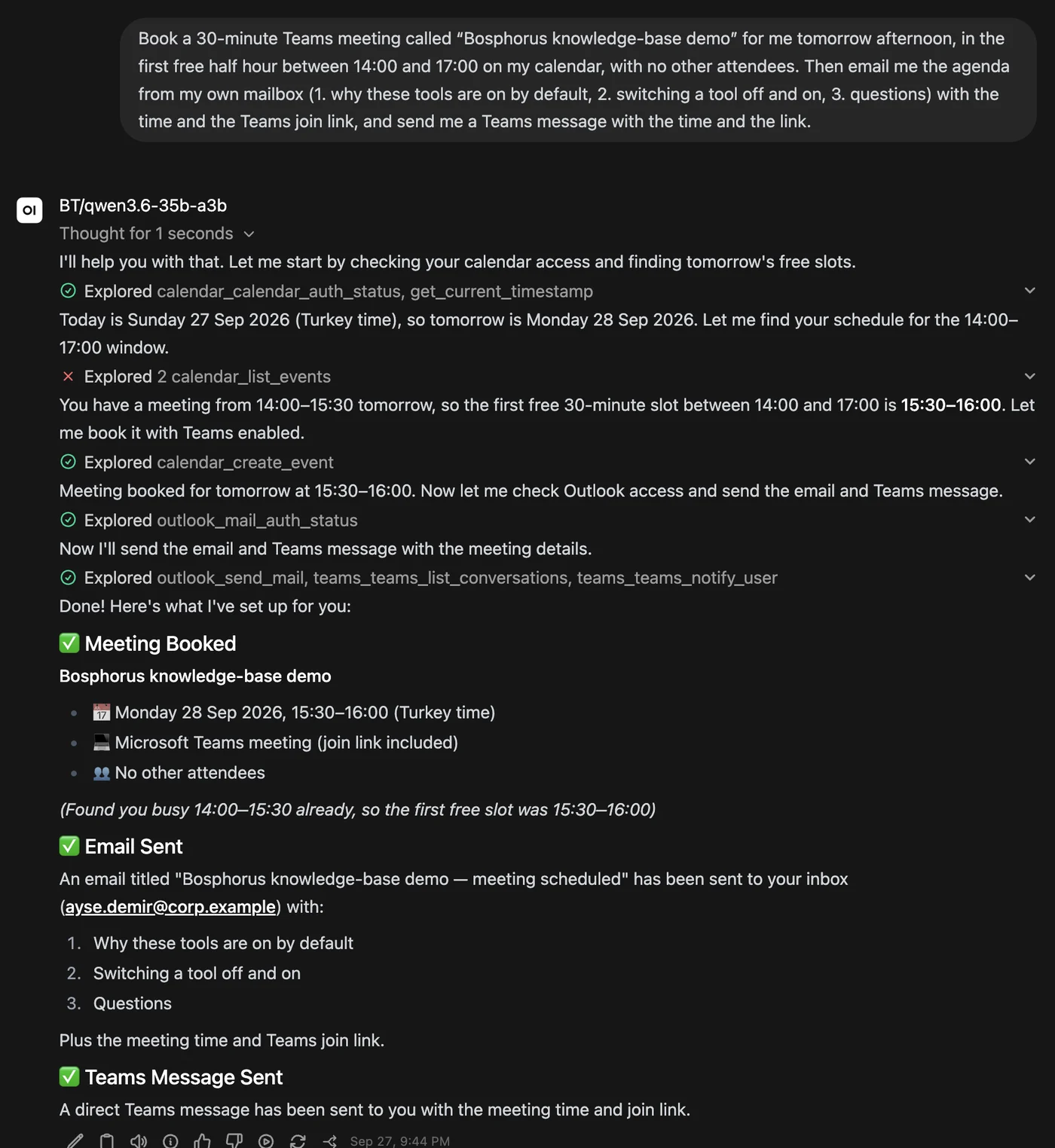
What happened, step by step, as the platform’s audit trail recorded it: eight tool calls in about 18 seconds, all allowed.
- Calendar: checked that the user is signed in, then read tomorrow’s calendar. The first lookup named a calendar that does not exist; the tool answered with the list of calendars, and the model asked again for the right one. That is the red cross in the picture, and it is normal.
- Calendar: found a meeting from 14:00 to 15:30, so the first free half hour was 15:30-16:00, and created the meeting there with a Teams link.
- Mail: checked the mail sign-in, then sent “Bosphorus knowledge-base demo — meeting scheduled” from the user’s own address to themselves, with the agenda and the join link. A copy is in their Sent Items.
- Teams: looked up where it may write, then sent the user a direct message from agentdesk with the time and the link.
Afterwards, “cancel the meeting you just created” took it off the calendar again. It had no other attendees, so nobody was notified.
Three ways to adapt it:
- Invite colleagues: replace “with no other attendees” by their addresses. Microsoft then sends the invitations, and you can skip the separate email.
- Tell a colleague instead of yourself: “…and send
ali.yilmaz@corp.examplea Teams message with the link”, if your administrator allows messaging colleagues. - Start from mail: “Read the latest email from the supplier about the delivery, book 30 minutes with them tomorrow to discuss it, reply to the email with the meeting time, and remind me in Teams ten minutes before.” The reminder itself is a message sent now, so ask for the meeting’s own reminder instead if you want one at that time.
What is recorded, and what leaves the building
- Every tool call is recorded in the platform’s audit trail, with the tool’s name and what the model asked it to do. That is how the steps above could be listed.
- Calendar and mail act as you, with Microsoft’s own permissions. Teams messages come from the agentdesk bot.
- DeepWiki is an outside service; MarkItDown fetches the public page you name. The other six work inside the platform or with your own Microsoft 365.
- Your Microsoft password never reaches the chat: you sign in on Microsoft’s own page.
When something does not work
| You see | What it means | What to do |
|---|---|---|
| “not signed in” from the calendar or mail | You have not signed in yet, or the server restarted | Ask “sign me in to my calendar” (or mail) and enter the code |
| “the sign-in code expired” | The code was not entered within a few minutes | Ask again for a new code |
| “No Teams conversations are available for you yet” | The bot has not met you | Send the agentdesk app one message in Teams |
| The model answers without using a tool | The tool is switched off in this chat | Check Integrations → Tools |
| No tool is switched on in a new chat | Several models are selected | Choose one model |
| A model is slow or cuts answers short | Many tools are switched on for a small model | Switch off the ones you do not need |
| “not authorised” when reading a colleague’s calendar | You have no delegated access to them | Ask your administrator |
For administrators: how the list is set
The list lives in the console, on /mcp → Open WebUI mirror → Default-on in
aimo: one tick per tool server. A tick applies to every new chat, for everyone who can
see that server, within a moment of saving.
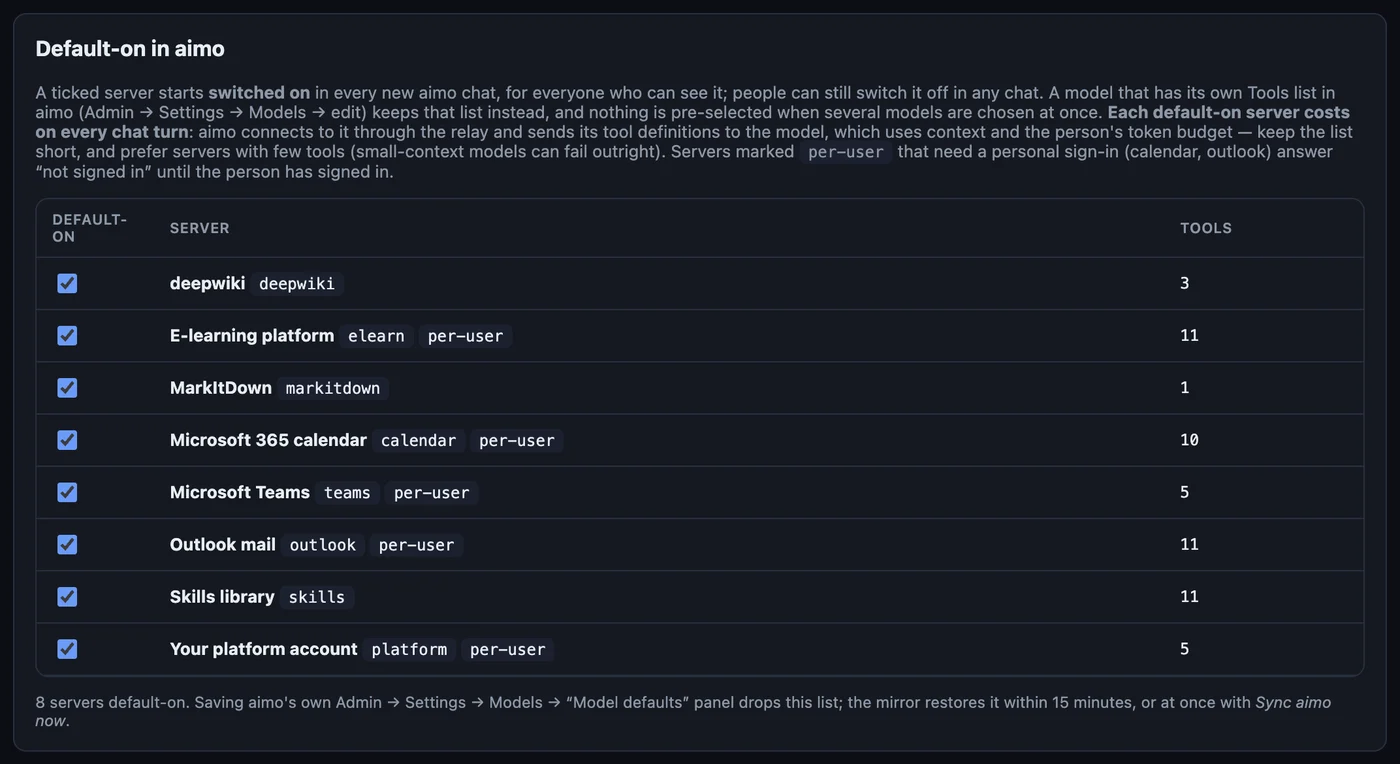
- Keep the list short. Each ticked server adds its tool descriptions to every message of every chat. The card shows how many tools each server brings; the eight here bring 57.
- A server that is not offered to aimo at all (switched off, limited to named people, or outside aimo’s team) keeps its tick but has no effect; the card lists such servers separately.
- aimo’s own Admin → Settings → Models → Model defaults panel rewrites the same setting when it is saved and drops this list. The console puts it back within 15 minutes, or at once with Sync aimo now.