Your company’s email signature can come from aimo. You ask for it, aimo builds it from your company’s template and your entry in the company directory, you correct anything that is wrong, and the platform keeps it under a name of its own. You then paste it into Outlook once. HR staff use the same tool server to add or change a company template, so a new office or a new logo reaches everyone’s next signature.
One thing it cannot do: put the signature into Outlook for you. Microsoft offers no supported way for another program to add a named signature to the list Outlook shows, so the last step is always yours: copy, paste, save. It takes a minute, and aimo gives you the exact steps every time. Choosing the default signature is part of those steps for the same reason.
Everything below was done on the running product on 22 November 2026: an ordinary user created their signature in aimo, and an HR operator added a template for a second office. The screenshots are real, with people, companies, addresses and logos replaced.
Who does what
| What | Who | Where |
|---|---|---|
| Create your own signature | Each person | aimo, tool Email signature |
| Paste it into Outlook and choose the default | Each person | Outlook on the web or the new Outlook |
| Add or change a company template | HR, with an operator rule | aimo, tool Email signature |
| Grant HR its rule (which companies or people) | Global administrator | Console, /signatures/operators |
| Publish a logo, badge or banner | Platform administrator | A public web address (see Images) |
What you need
- A sign-in to aimo with your company account.
- A template for your company. If there is none yet, aimo says so: no active signature template serves your domain. Ask HR.
- For HR: an operator rule. Without one, the template tools answer you hold no signature operator rule.
The same tool server also works in the aimo extension for VS Code: ask there in the same words.
Part 1: your own signature
1. Switch on Email signature
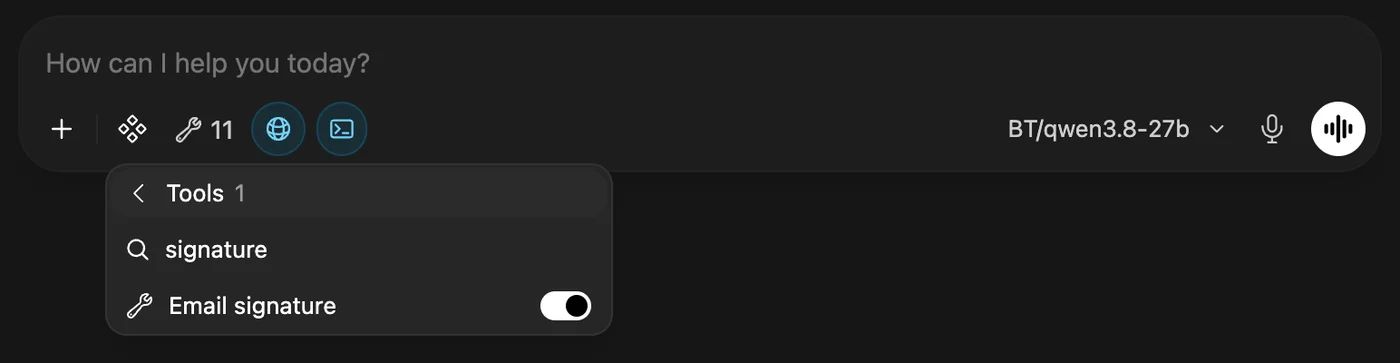
The tool server does not start switched on. In a new chat, open Integrations (the icon next to + under the message box), then Tools, type signature in the search box and switch on Email signature. It stays on for that chat.
2. Ask for a preview
Ask in your own words, for example:
Create my Outlook email signature. Show me a preview first.
aimo reads your directory entry (name, title, phones), picks your company’s template and shows the result in the panel on the right. It also tells you the name the signature will get, and which fields are empty.
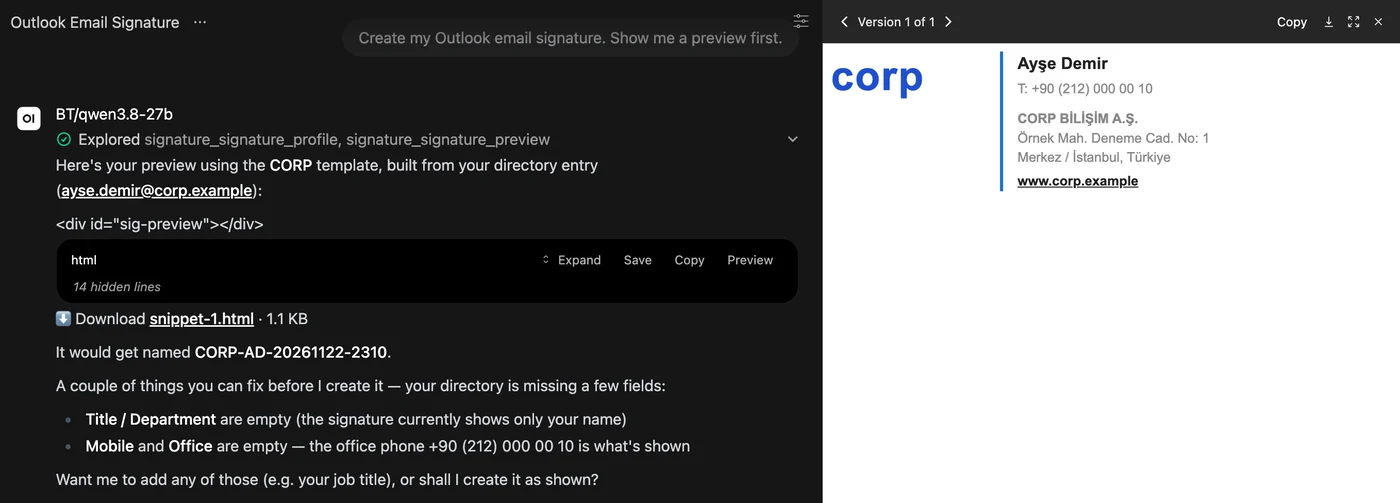
The name follows one rule for everybody: company code, your initials, then the date and
time, for example CORP-AD-20261122-2311. You cannot choose it. If you create two in the
same minute, the second ends in -2.
3. Correct what is wrong, then create it
Tell aimo what to change and that you want it created, for example:
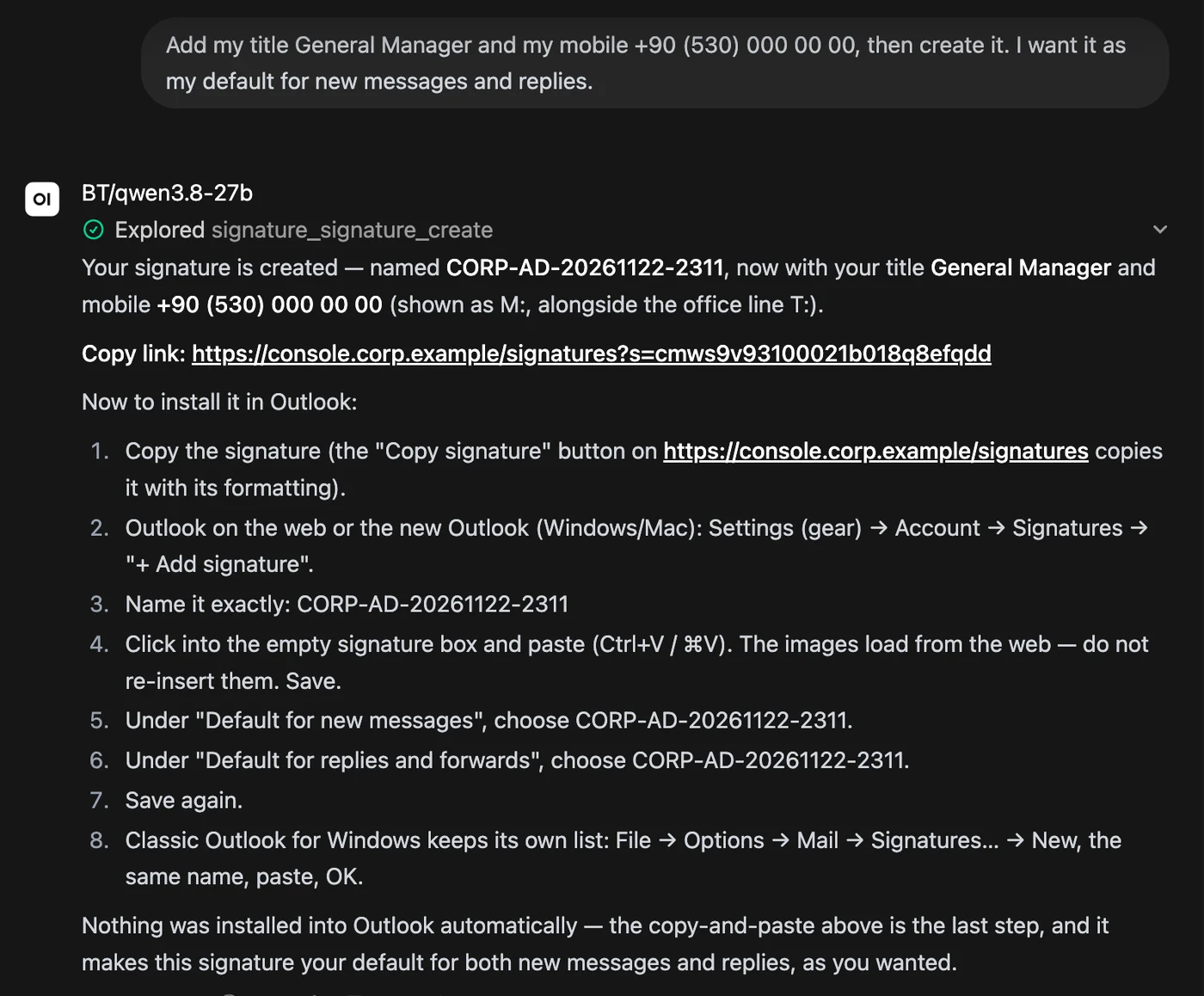
Add my title General Manager and my mobile +90 530 000 00 00, then create it. I want it as my default for new messages and replies.
You can correct the name as shown, your given name and surname, title, department, mobile, office phone and office. The correction applies to this signature only: your directory entry does not change. Your email address cannot be changed, because it says whose signature this is.
aimo creates the signature and answers with a copy link and the steps for Outlook. The default you asked for becomes part of those steps.
4. Paste it into Outlook
- Open the copy link. It opens Signatures in the console, where your signatures are listed. Click Copy signature: it copies the signature with its layout and images.
- In Outlook on the web or the new Outlook, open Settings (the gear), then Account, then Signatures, and choose + Add signature.
- Give it exactly the name aimo gave you.
- Click into the empty signature box and paste. The images load from the web, so do not insert them again. Save.
- If you want it as your default, choose it in the same place as the default for new messages, for replies and forwards, or both, then save again.
Classic Outlook for Windows keeps its own list: File, Options, Mail, Signatures…, New, the same name, paste, OK.
Changing or removing a signature
A signature you have pasted is yours: Outlook keeps it even if the platform’s copy goes. To change one, ask aimo for a new one with the correction; it gets a new name, and you paste it like the first. Ask show my signatures for the list, or delete CORP-AD-20261122-2311 to remove the platform’s copy. Then delete the old one in Outlook yourself.
Part 2: HR adds a company template
A template is the layout every person of a company gets: the logo, the company name and address, the switchboard, the website, the colours. People’s own details fill it in. HR can list, preview and save templates from aimo.
Who may do this
A global administrator gives an HR person an operator rule on the console page
/signatures/operators. The rule names whom it covers: every company of the platform, one
company’s domain, or single addresses. In aimo, an operator sees and changes only the
templates whose every domain lies inside their rule, so HR for one company cannot change
another company’s signature. The same rule lets them issue signatures for those people in a
batch on the console page /signatures/batch, and the platform can mail each person
theirs.
1. Describe the template
Switch on Email signature as in Part 1, then say what you want. Starting from an existing template is the easiest way:
Add a new signature template for our Ankara office. Start from the company template, call it “CORP Ankara”, and use the address of the Ankara office. Show me a preview first, don’t save yet.
aimo reads the templates your rule covers, writes the new one and previews it with the platform’s sample person, Ayşe Örnek, so you see every field filled in. If the preview arrives as plain text, ask for it inside an html code block: aimo then shows it in the panel on the right.
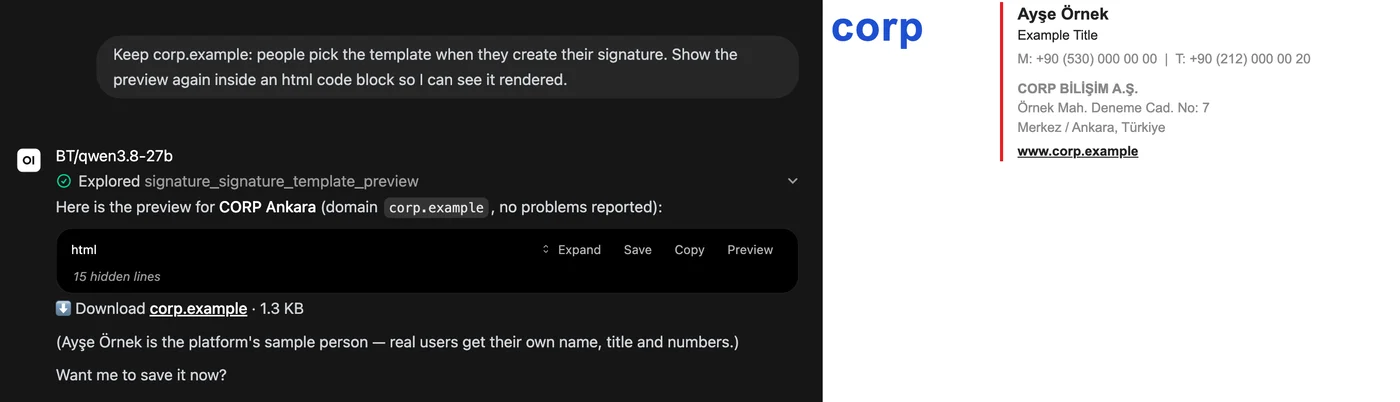
The preview also reports problems, and aimo cannot save a template that has any: an image that is not on a public https address, an SVG image, an image without a description, a link that is not https, email or phone, or a template that never shows the person’s name.
2. Save it
When the preview is right, say so:
Looks right. Save it.
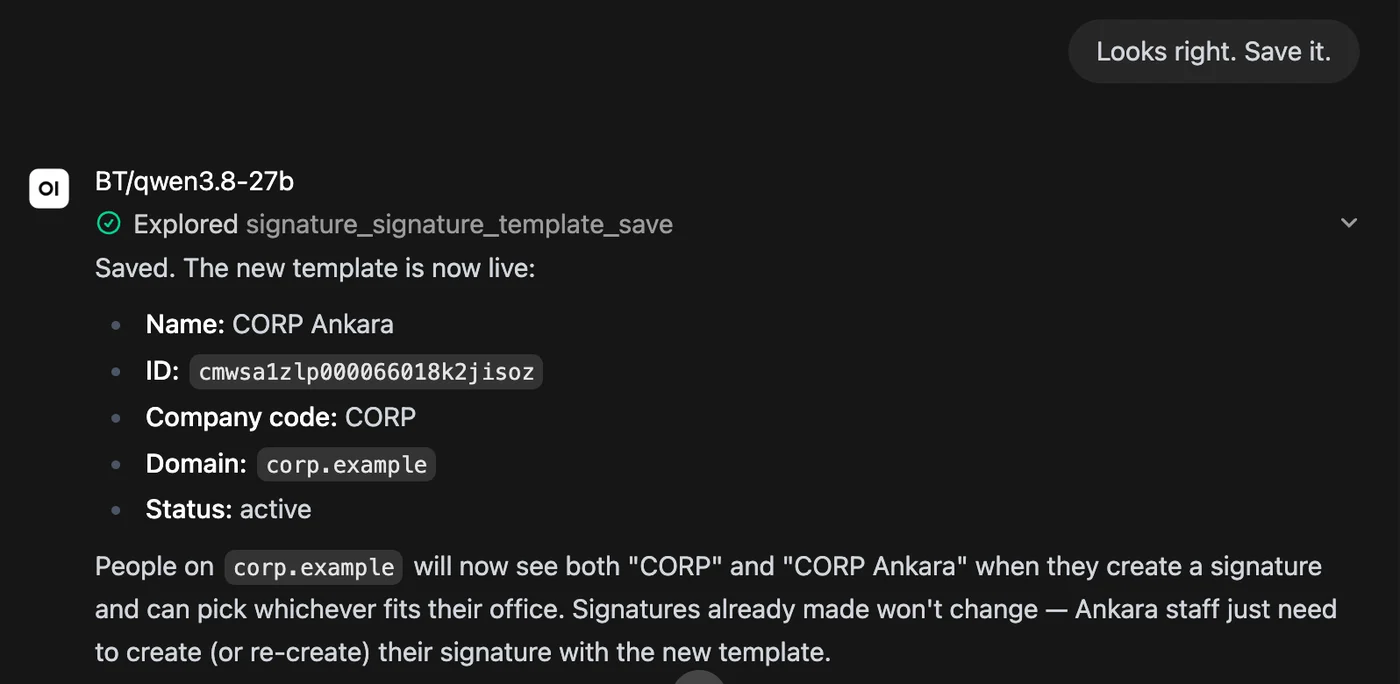
People of that company now see the new template next to the existing one when they create a signature, and can say which one they want. Signatures already made do not change: anyone who wants the new one creates a new signature.
To change a template later, ask aimo to change it by name; it updates that template. A new
template with the name of an existing one is refused, so a typing mistake cannot replace
another template. To withdraw a template, ask aimo to deactivate it. Deleting one is left to
an administrator on the console page /signatures/templates.
Images
Logos, badges and banners must be PNG or JPG at a public https address, because the people who receive your email load them from the internet. Keep a logo under 100 KB and about twice the size it is shown at. SVG does not show in Outlook; WebP and animated GIF do not belong in a signature either. You cannot upload a file from aimo yet: send the image to your platform administrator, who publishes it and gives you its address to use in the template.
When something goes wrong
| What you see | What it means |
|---|---|
| No active signature template serves your domain | Your company has no template yet. Ask HR. |
| The name is empty | The directory has no name for you. Give it as a correction. |
| You hold no signature operator rule | The template tools are for HR. A global administrator grants the rule. |
| … is outside your operator rule | The template serves a company your rule does not cover. |
| A template named … already exists | Ask aimo to change that template by name instead. |
| SVG images do not render in Outlook | Use a PNG or JPG version of the image. |
| The pasted signature shows no images | The images were removed in Outlook, or the address is not public. Paste again; ask HR to check the address. |