Sign in and your key
Signing in to llm-bench, pasting your own platform key and why it must be yours, the model profile it carries, where it is kept and how to remove it.
Checked against the running product on 22 November 2026
llm-bench has no password of its own, and no key of its own either. You sign in with your company account, then paste the one thing it runs on: your own platform key. This page covers both, and what happens to the key once it is saved.
Signing in
Open llm-bench at your organisation’s address, for example https://bench.corp.example. Any
page sends you to your organisation’s sign-in page, the same identity provider as the platform’s
other apps, and brings you back to the page you asked for.
- Your installation decides which e-mail domains may sign in, usually your organisation’s own. An address outside them is refused at sign-in. An installation may also admit every domain.
- A session lasts 12 hours. After that, the next page you open asks you to sign in again.
- Sign out is at the foot of the sidebar, under your address. It ends your llm-bench session and, where the identity provider supports it, your session there too.
Signing in identifies you to llm-bench. It gives the service no access to the platform: that comes only from the key you paste.
Why it must be your own key
llm-bench is built so that every token a sweep spends is charged to the person who ran it, and
every request runs under that person’s model profile. It can promise that only if the key is
bound to you. So before it saves a key, it asks the gateway who the key belongs to
(GET /api/identity/me) and compares the answer with the address you signed in with:
| The key is | What happens |
|---|---|
| Bound to you | Accepted |
| A team’s or a service’s key, bound to no person | Refused: key gpk_… is a shared key of team "…", not bound to a person — use your own platform API key |
| Bound to someone else | Refused: key gpk_… is bound to another person, not to you (…) — paste your own platform API key. The other person is deliberately not named |
A key that an administrator creates for a team on the console’s Teams & Keys page is a shared key, so it is refused here.
Getting a personal key
Where your installation offers it, you create your own key on the platform console: open My variables, and press Create my API key on the My API key card. The key appears once with a Copy button; a copy is kept for you, and Show key gives it to you again later. If your installation offers no such page, ask your administrator how it issues personal keys.
Treat the key like a password: anyone holding it acts as you on the platform.
Saving your key
- Go to My key.
- Paste the key into Platform API key (gpk_…) and choose Check and save.
- The page says Key accepted and stored, encrypted.
The card above the form then shows the key’s prefix (its first twelve characters), your Team, your Model profile and when the key was Last checked.
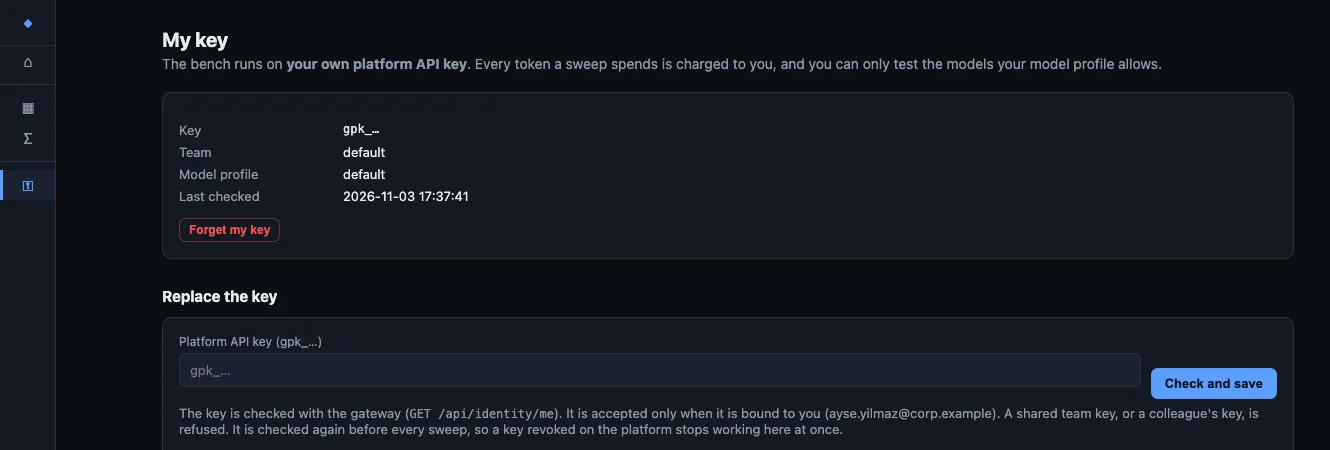
The key is checked again with the gateway before every sweep and every time Bench loads the model list, and the card’s team and model profile are refreshed each time. A key revoked on the platform therefore stops working in llm-bench at once. To use a different key, paste it under Replace the key.
Your model profile decides what you may test
Your administrator can limit which models a person may use with a model profile, a list of allowed models, set on the console’s Teams & Keys page under Model profiles. llm-bench adds no rule of its own; it runs under the profile the gateway applies to your key:
- The model list is yours. When you choose Load models on Bench, the gateway lists only the models your profile allows.
- A refusal is a skip, not a failure. If the gateway refuses a model during a sweep, every
cell of that model is skipped with the reason
not allowed by your model profile "…", and the bench sends it no further requests.
The profile’s name is on My key and Overview, and on the first line of every sweep’s log. If a model you need is missing, ask your administrator to widen your profile.
Where the key is kept
- Encrypted, in llm-bench’s own database, under an encryption key that belongs to this service alone.
- Never sent back to your browser. The pages show its prefix only.
- Never written anywhere else — not in a log line, a run, its saved plan or any download.
If your administrator ever changes the service’s encryption key, the stored key can no longer be read. My key then says The stored key can no longer be read (this service’s encryption key changed). Paste it again below. Paste it again; your runs are not affected.
Removing it
Forget my key on My key deletes the key from llm-bench, and the page says Your key was deleted from this service. Your runs stay where they are.
Forgetting the key here does not revoke it. It still works everywhere else you use it. To stop the key itself, remove or replace it where you created it — on the console, Remove or Replace on the My API key card.
For administrators
llm-bench has no administration page; what it does for a person is governed on the platform console. Which models a person may test is their model profile. How much a sweep may spend is the key’s own rate limits and the team’s token budget and concurrency limit. Which domains may sign in is set when the service is installed. Every request a sweep makes is on the activity page under the person’s name — see What it measures and costs.