Recordings and transcripts
Speech to text in voimo: uploading a recording, its language and names, how it is transcribed, transcribing again, editing and exporting it.
Checked against the running product on 22 November 2026
A recording is an audio or video file you upload: a meeting, an interview, a call, a lecture. voimo writes down what is said in it as a transcript with a time on every line, and keeps both in your private library until you delete them.
Uploading a recording
On Recordings, fill in the form and press Yükle ve yazıya dök · Upload and transcribe.
| Field | What to enter |
|---|---|
| Title (optional) | Up to 200 characters. Left empty, the file name becomes the title |
| Language | Detect, the default, Türkçe or English |
| Adlar ve terimler · Names and terms (optional, comma separated) | People, products and technical words said in the recording, up to 300 characters — see below |
| Recording | An audio file — MP3, M4A, WAV, Ogg, Opus, FLAC and others — or an MP4 or WebM video, whose sound is used. Up to 600 MiB and three hours by default |
| The confirmation box | Required — see below |
The button shows Uploading… N% while the file travels, and the recording’s page opens when it has arrived. A large file takes a while on a slow connection; keep the page open until it moves on.
The confirmation. The box reads Bu kayıtta sesi bulunan herkes bilgilendirildi ve kaydın yazıya dökülmesine rıza verdi., with the English in brackets: Everyone in this recording was informed and agreed to it being transcribed. Tick it only when that is true. voimo records when you confirmed it.
The language
With Detect, the speech model works out the language from the audio. When you know the
recording is in Turkish or in English, naming it saves the model a guess. The language is
shown on the recording’s page and in your list as a two-letter code, such as tr or en.
Names and terms
A speech model spells an unfamiliar name or a technical word by its sound, so a recording that mentions Jensen Huang or grep can come back with something that only sounds like them. List such words under Names and terms, separated by commas, and voimo hands them to the model with every part of the recording, so it spells them your way. Set the language too, for the best result.
- Only words that are said in the recording. A word that is not said is not inserted.
- It fixes spelling, not hearing. A number or a word the model misheard because of noise or people talking over each other stays misheard.
The names you gave are shown on the recording’s page.
How a recording is transcribed
- The sound is prepared. voimo converts it to a compact mono format and cuts it into 10-minute parts. The page shows the progress as N / M parts.
- Each part is transcribed in order, by your installation’s speech-to-text model; in voimo’s standard configuration, a Whisper model. The last sentence of each part is handed to the next one, so names and context carry across the cut.
- Gaps are checked. The model can stop at a pause and leave out what follows, without any error. So voimo looks at every stretch of three seconds or more that came back with no text, measures whether it holds sound, and sends the stretches that do back to the model on their own, putting what returns in at the right time. Pure silence is never sent again, because the model tends to invent text for it, and stock phrases such as subtitle credits are dropped from a stretch that was sent again.
- The end of each part is checked too. When the last few seconds of a part hold sound but came back with no text, voimo sends them again together with the few seconds before them, and keeps only the words that follow what is already in the transcript. This usually recovers a last word or two, not a whole lost ending.
- The transcript is saved, with the text, the timed lines and the language, and the recording becomes done. The text is broken into paragraphs wherever the speakers paused for a second and a half or more, and a long passage at the next sentence end, so a conversation reads turn by turn; the timed lines are unchanged.
The timed transcript
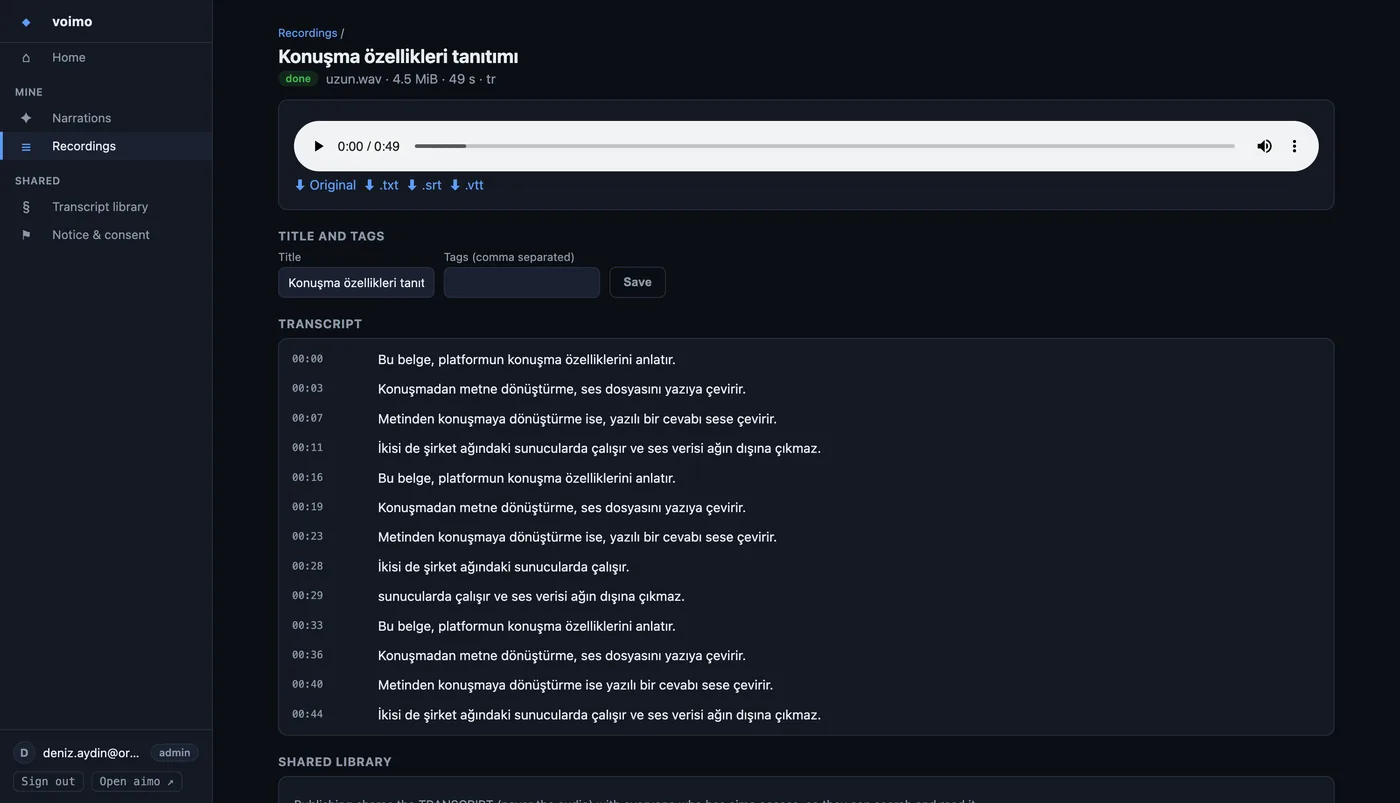
Under Transcript, every line starts with the time it begins, in minutes and seconds, or hours, minutes and seconds in a long recording. The lines are what the model returned; a transcript does not say who is speaking.
The recording’s page
| Part | What it shows |
|---|---|
| Under the title | The status, a published badge when the transcript is in the shared library, and the original file name, its size, length and language |
| While it runs | A progress bar, N / M parts. The page refreshes itself every few seconds |
| If it failed | The reason, in red — see The life of a job |
| The player | Plays your original file, with ⬇ Original; from the moment it is uploaded |
| Once it is done | ⬇ .txt, ⬇ .srt and ⬇ .vtt beside ⬇ Original |
| Title and tags | Change the title, add tags — see below |
| Names misspelt? Add names and terms, then transcribe again | Once it is done or failed: transcribe it again — see below |
| Transcript | The timed lines |
| Shared library | Publish or unpublish the transcript — see The shared library |
| At the foot | Uploaded, Finished, Source (web for this page, aimo-file for a file sent from aimo) and Participants confirmed: yes, or not yet (needed to publish) for a recording sent from aimo |
Delete removes the recording, its audio, its transcript and its publication, after you confirm Delete this recording and its transcript?.
Title and tags
Under Title and tags, change the Title (1 to 200 characters) or the Tags (comma separated), and press Save.
- Up to 10 tags, of up to 40 characters each. They are stored in lower case, and a repeated tag is kept once.
- A published transcript follows. Its title and tags in the shared library change with the recording’s.
Transcribing again
Open Names misspelt? Add names and terms, then transcribe again on the recording’s page, change the Names and terms or the Language, and press Yeniden yazıya dök · Transcribe again. Language starts on the language you chose at upload or, after Detect, on the one detected. There is no confirmation question: the press starts the job at once, and transcribes the whole recording again from the file you uploaded; the page refreshes when it is done.
- The new transcript replaces the old one, in the shared library too if you published it.
- It is a job like any other, so it needs room in your queue and your storage.
Correcting the words
The transcript itself cannot be edited in voimo. For misspelt names, transcribe it again with Names and terms. For anything else, download it, correct your copy, and keep that copy where you need it. The transcript in voimo, and in the shared library if you published it, stays as the model wrote it. A passage the model got badly wrong is a reason to think twice before publishing.
Exporting a transcript
| Download | What it is |
|---|---|
| ⬇ .txt | Plain text: the whole transcript without times, in paragraphs where the speakers paused |
| ⬇ .srt | SubRip subtitles: numbered lines, each with its start and end time |
| ⬇ .vtt | WebVTT subtitles: each line with its start and end time |
The files are named after the recording’s title. Your browser may open one in a tab rather than save it; save it from there. A program can also read the transcript as JSON, with the language, the length, the full text and the timed lines — see From aimo and from code.
Your recordings
The Mine list under the form shows every recording of yours, newest first, 25 to a page: the title with the original file name and size under it, the status (with the part count while it runs, and published when it is in the library), the length, the language and Created, when it was uploaded. Use Older → to page back.